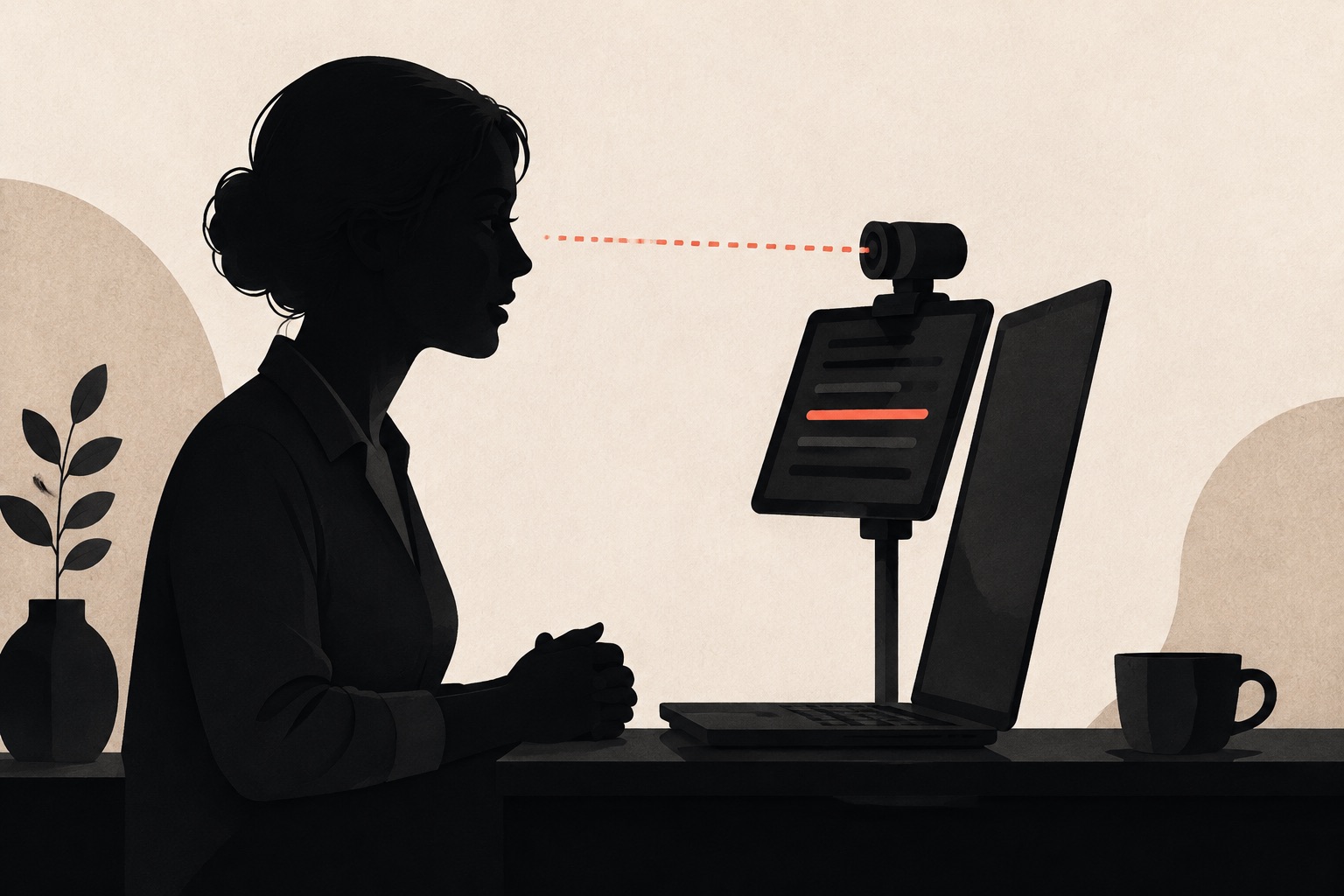
A prompt can be readable and still make you look away from the people on the call. The useful target is not a perfect fixed stare at the webcam. It is a small, repeatable movement between the lens, the other person, and the next line of your script.
Start by setting up the camera position. Then place the teleprompter where it gives you the shortest comfortable glance. After that, adjust the text size for the space you have left. This order avoids solving a positioning problem with oversized text.
The near-lens zone
Think of the area immediately around the webcam as your near-lens zone. A prompt below the camera is usually practical because it does not cover a laptop display. A prompt just to one side can work if it sits close to the camera preview or the person you are speaking to. A prompt low on the desk is easier to spot as a downward look.
Before a call, open a short paragraph and record or preview yourself saying it. Look at the lens for the first thought, glance to the prompt for the next phrase, then return to the lens. If the motion makes your head move or your eyes travel a long way, move the prompt closer before changing the script.
Use the camera as the anchor. Put the webcam at the height you will use for the call, then bring the prompt toward it. Raising a device only after you have found a readable font size often creates a new eye-line problem.
Choose the setup that matches the call
Computer call with a phone or iPad prompt
For a Teams, Zoom, or Meet call on a Mac or PC, place an iPhone or iPad immediately below, above, or beside the webcam. Keep its top edge as close to the camera as the stand allows. If the device is below the screen, raise it instead of leaving it flat on the desk. A small desktop stand or a stable stack of books is often enough.
Keep the call window near the same area as the prompt. This gives you a natural reason to move your attention between the speaker, the lens, and the script without looking across the whole monitor.
Meeting and prompt on the same iPad
When the call runs on iPad, first put the iPad in its real stand or keyboard case position. Arrange the meeting and AdLibly in the space you will actually use, then set the prompt size. If the meeting needs the iPad microphone, AdLibly’s iPhone Companion can listen from a nearby paired iPhone while the iPad keeps the meeting audio. Use headphones connected to the iPad so call audio does not reach the iPhone that is following your words.
For the practical pairing and window setup, use the iPad Teams teleprompter guide. The same principle applies to other meeting apps: complete the arrangement before the call begins, not while you are introducing yourself.
Camera-mounted teleprompter glass
If direct lens contact matters for a recorded address, a camera-mounted teleprompter puts reflected text in front of the lens. This is a physical rig rather than an ordinary desk prompt. In AdLibly, turn on Mirror Text only when the screen is reflecting through teleprompter glass; the reflected words then read correctly from your speaking position.
Set the camera and glass first, then run the same delivery test you will use for the recording. The rig changes the height, distance, and viewing angle of the screen, so a text size that worked at your desk may not be right in the glass.
Use a two-minute positioning check
- Set your chair or standing position. Use the lighting, glasses, and camera height you expect on the day.
- Open the real call or camera preview. Put the webcam and the other person’s video where you intend to look.
- Place the prompt near the lens. Start below the camera if you need an uncomplicated default, then move it closer if the glance feels large.
- Read two short paragraphs aloud. Include a name, a number, and a transition so you test more than easy copy.
- Watch for head movement. If you are tilting your chin down or turning your head, move the prompt or camera before increasing the type.
- Leave it in place for the opening. The first thirty seconds are when a stable setup helps most.
Fix the problem you can see
Your eyes move down too far
Raise the device, shorten the gap between the webcam and prompt, or use a smaller prompt device near the camera. Increasing the font can help readability, but it will not reduce a large vertical distance from the lens.
You are scanning across a long line
Move the prompt closer to the camera first. If the line is still hard to catch, make the display narrower or use a slightly larger size. The teleprompter font-size guide has a quick glance test for choosing the final size at your real viewing distance.
Your setup works until someone interrupts
Keep short paragraphs and clear section starts so you have a recognisable place to return to. AdLibly follows your spoken words rather than moving on a fixed timer, so a pause, answer, or small detour does not require you to race the scrolling text. Rehearse the return once with the lost-place recovery drill.
A note on comfort and the audience
Do not force a near-lens position that makes you crane your neck or squint. A comfortable, stable setup beats a theoretically ideal one that you will abandon midway through a call. If you need to glance away to read a detailed figure, do it calmly, deliver the thought, and come back to the camera for the next point.
Good eye contact on video is mostly about the rhythm of those movements. Keep the next phrase within easy reach, know the shape of your script, and let the camera be the place you return to.
Keep the next phrase close
AdLibly keeps a clear reading line on iPhone or iPad and follows your spoken words, so your setup can support a real conversation instead of a fixed-speed scroll.
Get AdLibly