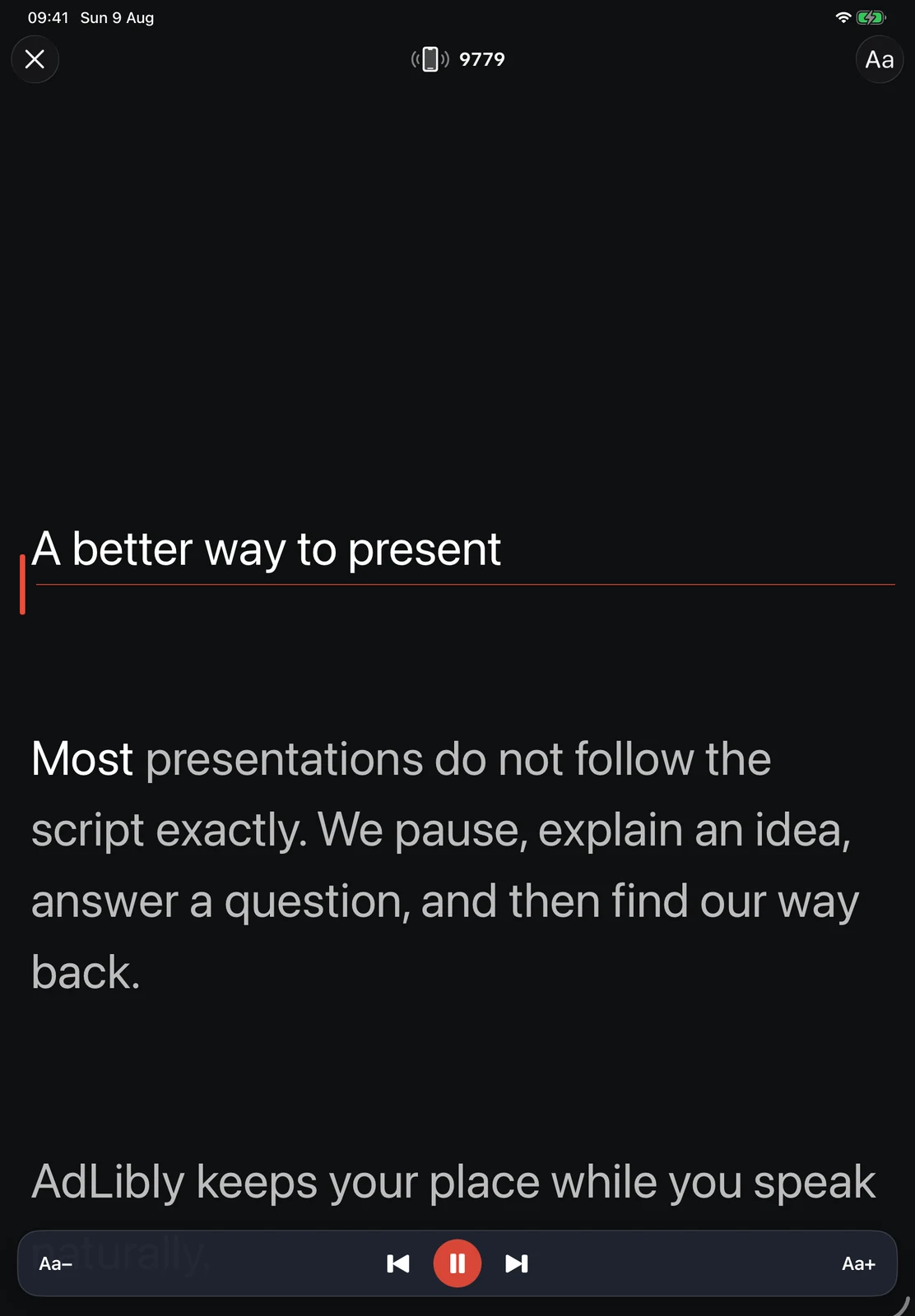
There is no single best teleprompter font size. Text that feels fine on an iPad near your desk can be hard to read from a stand beside a webcam. Make it too large and you may only see a few words at a time. Your best setting depends on the display, the distance, how much of the script you need to see, and where the screen sits in relation to the lens.
Set the text in the place where you will present, then use a quick glance test. You want to find the next phrase easily and keep your eyes close to the camera.
Set up the real presentation first
Before changing text size, put the device where it will be during the real presentation. A different position changes both readability and eye line. Testing with an iPad on your lap can feel very different from presenting with it beside a desktop webcam.
- For a video call on a computer: place the iPhone or iPad immediately below, above, or beside the webcam. Keep the distance and chair position you will use in the call.
- For an iPad meeting: arrange the meeting and script first, then size the text inside the space left by Split View, Stage Manager, or windowing.
- For a camera-mounted teleprompter: set the device in the rig and turn on Mirror Text before testing. The glass, mounting height, and camera distance all change the feel of the display.
- For an in-room presentation: test from your speaking mark. A larger display can give you a wider, more relaxed line length.
Choose a starting point by the job, not a magic number
Use the default size as a baseline, then change it for the constraint that matters most in your real setup. The table is a decision aid, not a distance chart: display size, eyesight, line length, lighting, and how near the screen is to the camera all matter more than a single point-size recommendation.
| When the setup feels like this | Try first | Keep an eye on |
|---|---|---|
| A phone or iPad is close to a computer webcam. | Start at the device default, then bring the prompt as near to the lens as the layout allows. | Moving the screen closer can reduce eye travel without leaving only a few words on each line. |
| An iPad window has become narrow beside a meeting or slides. | Set the real window width first; increase text one step only if the next phrase is hard to catch. | A larger size also shortens each line. Avoid solving a cramped window with giant text alone. |
| You are standing farther from a separate display or teleprompter rig. | Increase text until names and numbers are visible in a quick glance from your speaking mark. | Check the whole first section. A size that works for a short line may make a dense passage hard to scan. |
| You can read every word but look down or sweep your eyes across the display. | Move or narrow the prompt before increasing the size again. | Readability and eye line are separate problems; the biggest text is not always the most natural-looking setup. |
The three-glance test
Use a paragraph from the opening of your real script. Include a name or number and a natural pause. Pick a part that will make you glance at the prompt on the day.
- Read one short phrase. Look at the text only long enough to take in a few words, then look back to the camera, call, or imagined audience.
- Say the phrase aloud. Notice whether you are scanning for individual words or whether the phrase arrives as one thought.
- Find the next line after looking away. Look away for a beat, then return. If you need to hunt for the reading line, increase the text size or shorten the paragraph.
- Repeat after sitting back. Leaning forward can hide a size problem. Test in the same posture you will keep for the presentation.
A good result: you can catch the next phrase with a small glance and keep your head still. If your eyes travel across a whole sentence, try larger text, a narrower window, or moving the screen closer to the camera.
Adjust one thing at a time
When the glance test feels difficult, try a larger font first. It is the quickest fix, although fewer words will fit on screen. That can be useful for a short recording and less useful in a fast-moving meeting where you need to see the next section.
In AdLibly Presentation view, use Aa− and Aa+ to adjust the prompt. The app starts at 36 points on iPhone and 44 points on iPad, then changes in four-point steps from 24 through 96 points. Use those defaults as a starting point for your own setup.
Run the same four-step test after each adjustment. Make one change at a time so you can tell what helped.
A useful stopping rule
If the next size up still feels wrong, change the setup instead
Stop increasing the type when the larger setting makes you lose the next thought, yet the smaller setting is hard to catch. That is usually a placement, glare, window-width, or script-layout problem rather than a font-size problem. Move the device closer, shorten the paragraph, or make the prompt narrower; then repeat the glance test with the original size before changing it again.
What each result usually tells you
You can read it, but your eyes look busy
Move the display closer to the lens or camera window before making the type much larger. Keep the active line high enough that your glance is small. If the script is in a separate device, a small repositioning often helps more than a dramatic font increase.
You can see the words, but lose your place
Use shorter paragraphs and clear section starts. That makes it much easier to find your way back after a pause or question. The teleprompter script writing guide shows how to create useful landmarks in the script.
The type is comfortable until the meeting window gets smaller
Re-run the test after opening the real call and arranging the windows. A responsive iPad layout can change the available line width. Keep the meeting, slides, or notes visible while you set the size.
You are using a very large size and still straining
Bring the display closer, reduce glare, check the viewing angle, and make sure you are wearing the glasses or contacts you will use on the day. A larger font cannot fully compensate for a device placed too far away or at an awkward angle.
Keep the line length manageable
Font size and line length work together. A narrow portrait phone shows fewer words per line than a wide iPad at the same size. Both can work well. You just need enough of the next thought on screen without a big sweep of the eyes.
If you need much larger text, break a dense document into shorter spoken paragraphs. Paragraph breaks also give you an easy place to return to after an interruption. For a live call, pair this with the rehearsal drill for recovering your place.
A five-minute setup check
- Open the actual script and place the device where it will be used.
- Open the meeting, camera preview, or teleprompter rig so the available space is real.
- Start at the AdLibly default and complete the three-glance test aloud.
- Change only the text size in one step, then repeat the test from your normal posture.
- Read the first transition and one important number or name. If they are easy to catch, leave the setting alone and rehearse the delivery.
The last step matters. A setting can look excellent on a sample paragraph but fail on the part of the script that needs the most concentration. Testing the opening and a high-stakes detail gives the choice a useful reality check.
Set a prompt that fits your room
AdLibly gives you clear presentation text, quick size controls, and a visible reading line on iPhone and iPad. Set up the prompt to suit the way you speak.
Get AdLibly