Using a teleprompter for Microsoft Teams sounds straightforward. Put the script near the camera, start the meeting, and read. In practice, the two tools make different assumptions about what is about to happen.
A traditional teleprompter expects a mostly linear performance. Microsoft Teams is a conversation. Someone joins late. A colleague asks for clarification. The host switches to a demo. A notification changes the shape of the meeting window. The useful script is still there, while the timing shifts around it.
Live calls have their own timing
A fixed-speed teleprompter turns words per minute into movement. If the script and delivery remain aligned, it feels smooth. The moment you pause to listen, the words keep travelling. When you return, the line you need may be halfway up the screen—or gone.
You can stop the scroll manually, which means finding a control while staying engaged in the call. A remote control or foot pedal helps in a studio. During a Teams meeting, it joins a longer list of controls for muting, screen sharing, admitting participants, watching chat, and taking questions.
Live meetings move around. Pausing, listening, answering, and changing emphasis all affect the pace, so fixed-speed scrolling can quickly move the script away from the speaker.
The second problem: Teams may already be using the microphone
A teleprompter that tracks your place as you speak needs access to speech so it can match spoken words to the script. When the meeting and teleprompter run on the same iPad, Microsoft Teams may already be using the microphone for the call. Mobile operating systems protect that audio path, so another app cannot always listen at the same time.
Both apps need the microphone: Teams for the call and AdLibly to follow your place in the script.
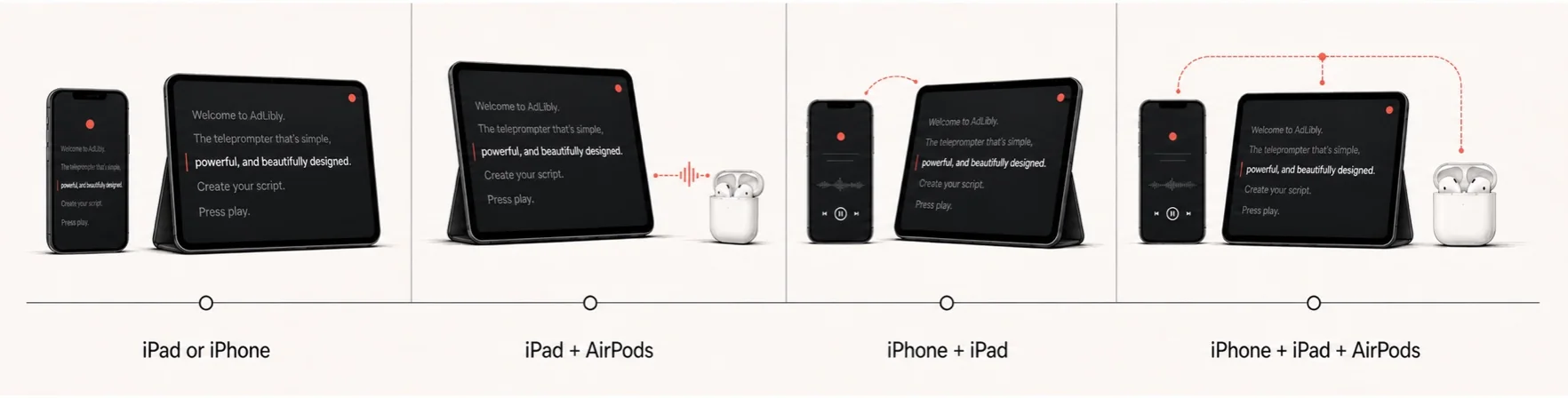
A two-device setup resolves this. The Teams meeting can remain on the iPad or computer while a nearby iPhone listens for AdLibly. The meeting keeps its microphone while the iPhone follows your words.
The third problem: the eye line is doing several jobs
In a recorded speech, you can look straight into the lens for long stretches. In Teams, you need to see faces, reactions, chat, and shared material. Placing a long script in a separate window far from the camera creates a visible side-to-side movement. Putting it directly over the meeting can hide the people you are speaking to.
A better layout gives each element a clear role:
- Keep the active line close to the camera or the upper part of the meeting window.
- Leave the participant area visible enough to notice reactions and raised hands.
- Use large, uncluttered text that can be read with a quick glance.
- Keep Teams controls predictable so muting and screen sharing stay easy to reach.
What a workable Teams teleprompter setup looks like
Option 1: Teams on the computer, teleprompter on iPhone or iPad
This is the simplest arrangement. Join Teams on the computer and place the iPhone or iPad immediately below or beside the webcam. AdLibly can use that device’s microphone while the computer handles the meeting. Keep the active line high on the screen so the eye movement remains small.
Option 2: Teams and AdLibly on iPad, with an iPhone listening
This setup is useful when the iPad is the main meeting device. Teams uses the iPad microphone for the call. A nearby iPhone listens locally and tells the iPad where you are in the script, while you continue reading from the larger display.
Option 3: camera-mounted teleprompter glass
For webinars, recorded announcements, or executive presentations, an iPhone or iPad can feed a beamsplitter teleprompter. Mirror mode flips the text so it reads correctly in the glass. This produces the strongest lens contact, although it requires more physical setup than an ordinary Teams call.
Set the iPad layout before people join
When Teams and AdLibly share an iPad, arrange the windows before the meeting starts—not while someone is asking the first question. On iPadOS 26, Apple’s Windowed Apps guidance explains how to drag an app from the Dock, App Library, or Spotlight to either edge of a full-screen app, then resize the two windows with the centre bar. On supported devices, Stage Manager is another way to keep a small group of working windows together.
Give Teams enough room to recognise the speaker, see shared material, and reach mute or leave controls without hunting. Give AdLibly enough width to show a short phrase clearly; a narrow prompt that forces you to read one word at a time is worse than a smaller, readable two-window layout. Keep the camera preview and active line in the upper part of your view so the glance back to the lens is short.
AdLibly Teams preflight
A two-minute check before the call
- Give each device one job. Decide whether Teams is on your computer or iPad. If it is on iPad, open your script there, tap Present, and pair a nearby iPhone using the four-digit code shown by AdLibly.
- Keep remote voices out of the listening phone. Connect headphones to the Teams device, then keep the iPhone Companion near you. This reduces the chance that other people’s voices are picked up by the phone that is following your script.
- Check the line, not the whole speech. Say the opening at your normal pace, pause for a beat, then continue from the next paragraph. The aim is to confirm that the prompt can follow a realistic interruption, not to perform a perfect rehearsal.
- Choose a safe restart point. Put a short heading before every important transition. If you lose your place, pause listening and return at the next complete idea with the manual paragraph controls rather than chasing the exact word where you stopped.
Why this matters: Teams lets participants and shared content change shape during a meeting, so the useful test is whether you can still see the call, hear it privately, and return to a clear idea after a detour.
Free printable checklist
Keep the device and audio handoff on one page
Download the plain-text preflight to fill in your device roles, check the sightline and audio route, then rehearse one pause and one unscripted answer. It includes a fallback that does not depend on finding the exact word after an interruption.
Write a Teams script differently
A meeting script should leave room for the meeting. Use exact wording where it matters, such as the opening, important numbers, legal language, names and the closing action. Write the rest as clear talking points. If an opening, demo, or closing has a fixed slot, use the timing calculator for a presentation script before the call, then leave room for the conversation itself.
Use short sections with clear landmarks. If a discussion takes you away from the prepared words, a heading such as “Why this matters” is much easier to find again than the middle of a dense paragraph.
It also helps to write transitions that survive interruption. A simple line such as “The next point is…” gives you an easy way back after a question.
Choose scrolling that follows you
A traditional teleprompter assumes that the speaker will follow the scroll. During a live call, it feels more natural when the text follows the speaker as the conversation changes pace.
Scrolling that responds to your spoken position removes the need to predict the pace of a conversation. A useful implementation should let you pause, repeat a phrase, skip ahead, and return after an unscripted answer. If the call occupies the main device microphone, a nearby listening device should be able to keep that behaviour working without sending the meeting audio to a cloud service.
Aim for a natural conversation
A teleprompter is successful in Teams when nobody thinks about the teleprompter, including the speaker. The audience sees someone who is prepared and attentive to what is happening. The presenter knows the next point is ready whenever they need it.
That balance comes from a sensible device layout, a script written for conversation, and scrolling that can tolerate the reality of a live meeting.
Keep Teams on the call. Let AdLibly keep your place.
Use AdLibly beside the meeting, or let a nearby iPhone act as the Companion when Teams is using the iPad microphone. Speech recognition stays on-device.
Get AdLibly