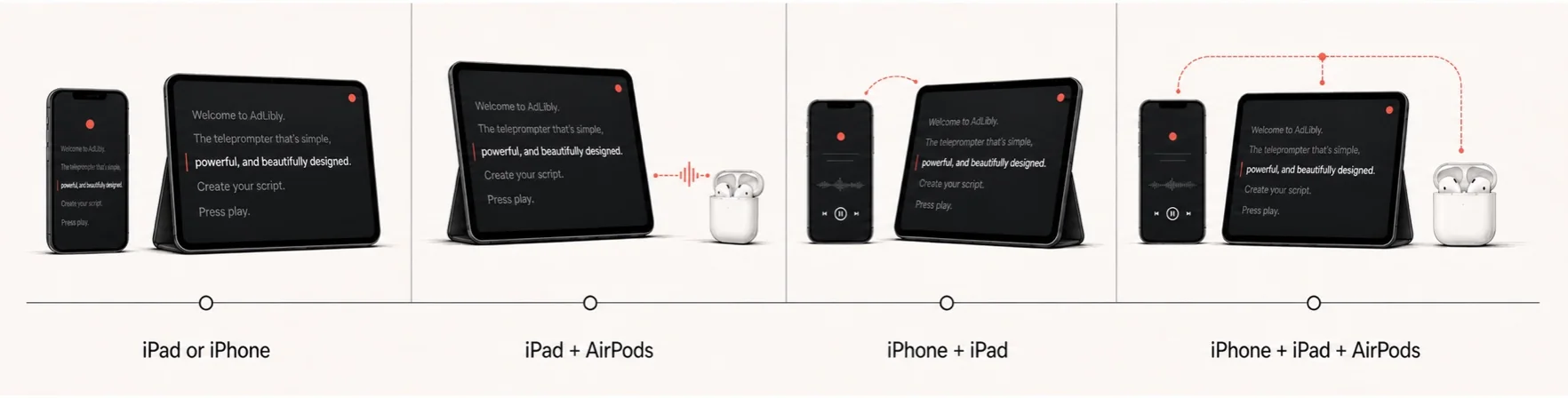
Putting a teleprompter beside Teams, Zoom, or Google Meet on one iPad is a useful lightweight setup. It avoids a second monitor and keeps the script close to the camera. It also creates a real trade-off: every extra line of prompt can cover a person, a shared slide, or the meeting controls you need when something changes.
The aim is not to make both apps equally large. The aim is to make the live call easy to operate while leaving a short, readable phrase available near your eye line. That is a different problem from setting up a teleprompter for a polished recording.
Start with the three things you cannot lose
Before moving windows, decide what must remain visible for this particular call. Most live presentations need these three areas:
- The conversation: the active speaker, participant reactions, or the shared content that tells you what to say next.
- The controls: mute, camera, share, and leave controls should be reachable without rearranging the screen.
- The next idea: a prompt should show a complete phrase or a short paragraph, not a narrow column that forces word-by-word reading.
Everything else is optional during the call. Chat, notes, and the full script can be opened when needed, but they should not displace one of these three jobs at the moment you start speaking.
Choose the simplest layout that passes your real test
| What you are doing | Start with | What to protect |
|---|---|---|
| A short opening, then discussion | Two side-by-side windows | Make the meeting window the larger one once the opening is finished. |
| A slide-led presentation | Meeting or slides full screen; prompt on a nearby iPhone or iPad | Keep the shared material and audience feedback unobscured. |
| A host role with chat and frequent controls | Meeting full screen; compact prompt on a second device | Do not cover moderation, mute, or screen-share controls with the script. |
| A fixed, direct-to-camera recording | Full-screen prompt or teleprompter glass | Use the extra screen space for a comfortable reading line, not a busy meeting layout. |
If the call contains an important demo or shared slides, a second device is often the simpler choice. A one-iPad layout is valuable when it genuinely reduces clutter, not when it turns every control into a tiny target.
Set up iPad multitasking before the meeting
Current iPads can use more than one app at a time with Windowed Apps or Stage Manager. Apple’s iPad multitasking guide explains how to enable Windowed Apps in Settings > Multitasking & Gestures, move and resize windows, and place two windows side by side. Stage Manager remains a useful alternative when you want a working group of overlapping windows. On an older iPadOS version, use the multitasking layout your device offers, such as Split View; the principle is unchanged.
- Open the meeting app first. Put its camera preview, speaker view, or shared content where you can see it without looking far from the camera area.
- Open AdLibly and enter Present. Resize it until it shows the next thought in a comfortably readable line. Avoid making it so narrow that every sentence wraps into a tall block.
- Leave a clean route to the controls. Check that you can reach mute, camera, and share without moving the prompt. If the app hides controls until tapped, practise revealing them once.
- Move the prompt toward the near-lens zone. Keep the active line near the iPad camera or the person you are speaking to, while still letting you see their reaction. The webcam positioning guide shows the small-glance test behind this choice.
- Save the simple version mentally. If a resize or new share window goes wrong, know which app goes full screen and where your next section begins.
AdLibly layout check
Run this 90-second preflight with the actual meeting layout
- Read the opening out loud. Check that you can see a full idea, not merely the next few words.
- Look at the other person or camera preview. Return to the prompt and then the lens. If your eyes have to travel across the whole iPad, move the prompt before increasing the font size.
- Reveal the meeting controls. Mute and unmute once; then check that the prompt has not covered the control you need.
- Pretend a slide or question interrupts you. Look at the meeting for five seconds, then restart at the next heading rather than searching for the exact word.
A layout that passes this short drill is more useful than one that looks tidy in a screenshot. If a step feels awkward, reduce the prompt to section landmarks or move it to a nearby device.
Keep the script smaller than the screen
A live call rarely needs a full transcript in view. Put exact wording where precision matters: the welcome, names, figures, a sensitive statement, and the closing action. Write the flexible explanation as short headings and cues. That leaves room for the people and the screen share, while giving you a clear place to restart after an interruption.
If you are tempted to make the prompt take half the display, first shorten the on-screen section. The live script-writing guide has a worked rewrite that turns dense copy into landmarks which are faster to recognise in a small window.
Plan for the microphone separately from the layout
Window arrangement does not solve microphone access. If the meeting app is using the iPad microphone, a voice-follow prompt on the same iPad may not be able to listen at the same time. In that case, AdLibly can use a nearby iPhone as its Companion listener while the iPad keeps the meeting and the reading line visible. Pair the iPhone before joining, and use headphones for meeting audio so the Companion primarily hears you.
For the precise pairing and audio check, see the iPad, AirPods, and iPhone Companion setup. For Teams-specific call preparation, use the Teams preflight.
Know when one iPad is not enough
Use a nearby second device when the meeting requires you to watch a gallery, moderate chat, present slides, and read a detailed script at once. This is not a failure of multitasking—it is a sign that the presentation has more jobs than one display can comfortably hold. Keep the meeting on the main screen, place the prompt near its camera, and use the second device for the words or for Companion listening.
The best teleprompter setup is the one that leaves you able to listen. If the layout makes you manage windows more than the conversation, make the prompt shorter or make the setup larger.
Keep the call visible. Keep the next idea ready.
AdLibly gives iPhone and iPad presenters a clear reading line, manual paragraph controls, and optional local voice-follow through iPhone Companion.
Get AdLibly