Microsoft Teams teleprompter
Keep the call.
Keep your place.
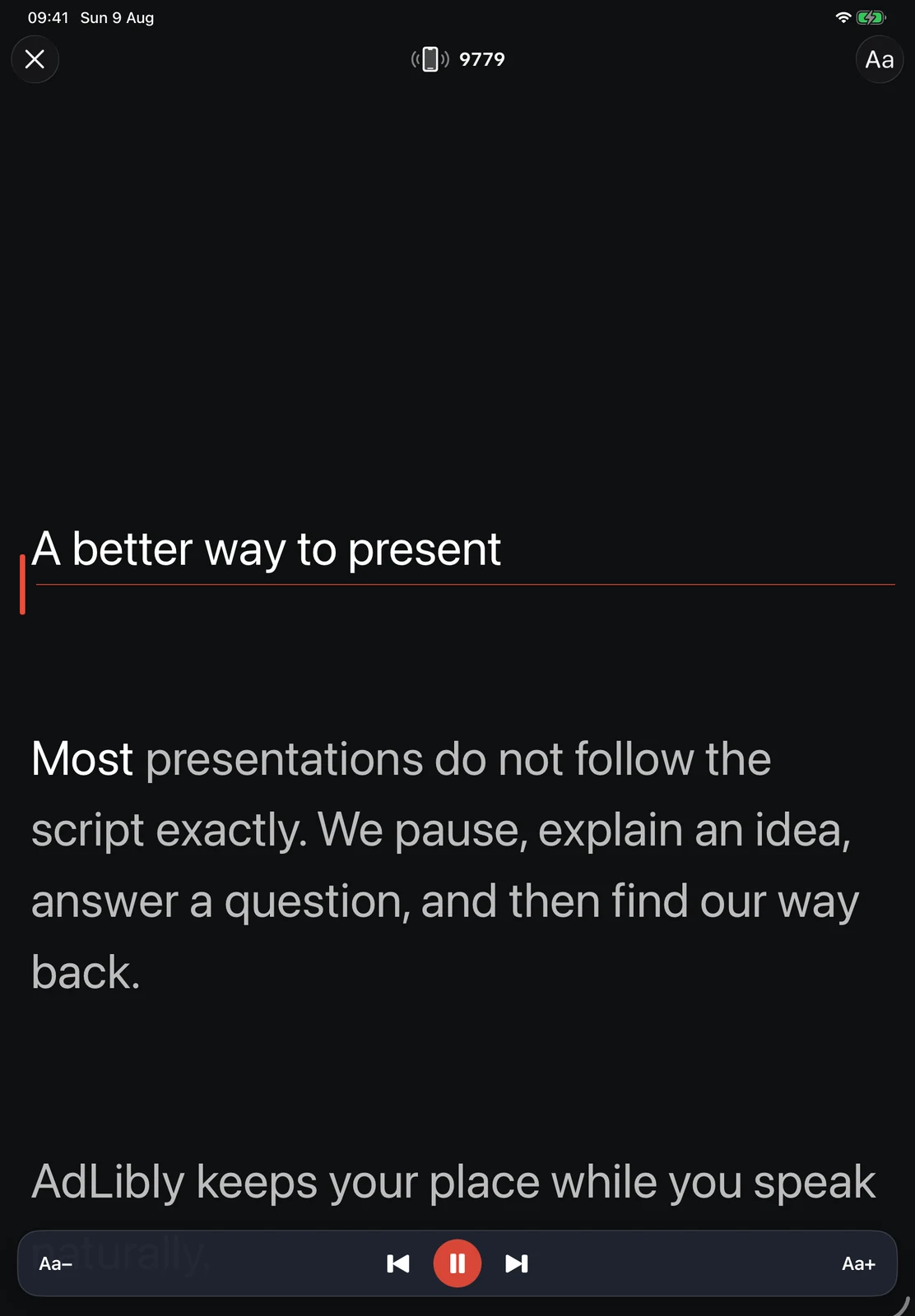
Teams can keep the iPad microphone for the call while a nearby iPhone listens for AdLibly. The iPhone follows your words while AdLibly keeps your place on iPad.
Why Teams changes the setup
AdLibly needs to hear the words you say so it can keep the right line on screen. During a Teams call, Teams may already be using the iPad microphone, which can prevent AdLibly from listening on the same device.
iPhone Companion solves this by giving each device one job. Teams handles the call on iPad. The nearby iPhone listens locally and tells AdLibly where you are in the script.
AdLibly runs and listens on the iPhone or iPad beside the camera.
A nearby iPhone Companion listens locally while Teams keeps the iPad microphone.
For the cleanest call, use headphones with the iPad. This stops voices from the meeting reaching the nearby iPhone.
When Teams and AdLibly share an iPad
- Open your script on iPad and tap Present. A four-digit code appears at the top of the screen.
- On iPhone, open AdLibly, tap Connect to iPad, choose your iPad, enter the code and tap Pair with iPad.
- Connect AirPods or other headphones to the iPad so the meeting audio does not reach the iPhone.
- Put Teams and AdLibly side by side on iPad using Split View, Stage Manager or windowing.
- Join the Teams call and say the opening lines to check that the active line follows you.
Ready for a live conversation
Questions, chat and screen sharing can change the pace of a Teams meeting. AdLibly pauses when you pause and finds your place when you return to the script, leaving you free to stay in the conversation.
Read the deeper guide to the challenges of traditional teleprompters in Microsoft Teams, compare the Zoom setup, or watch the product demonstration.