Present without internet.
An upcoming option for presenting when Wi-Fi is unavailable or unreliable.
Meta Ray-Ban Display
Your iPhone follows what you say. Your glasses keep the next words in view. Pause, take a question, then return to your script.
Requires Meta Ray-Ban Display and Meta Developer Mode in Meta AI.
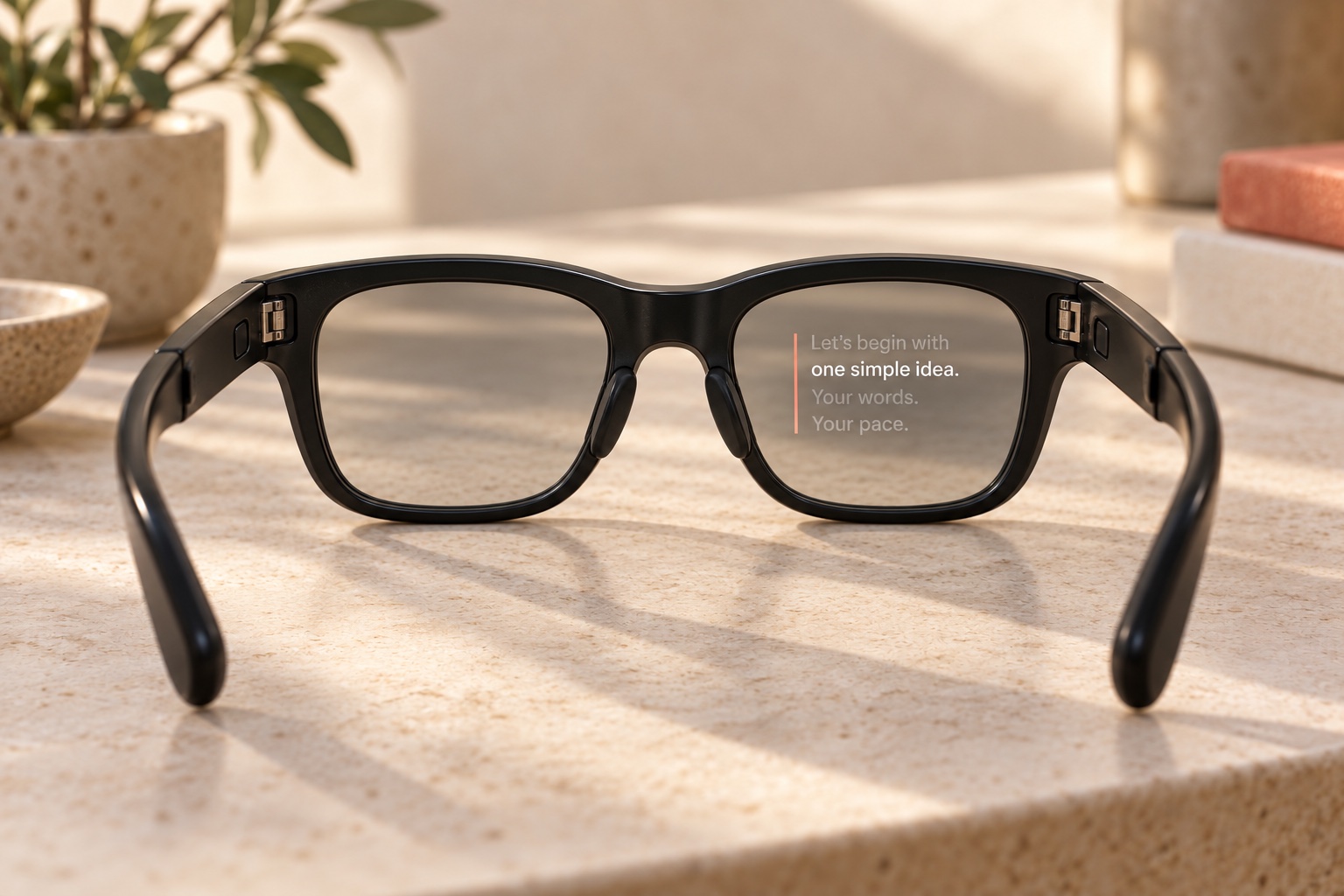
Keep your place
White current words. Grey surrounding words. A coral guide that gives your eyes somewhere to return.
The glasses are another display for your script. Recognition and alignment stay on the iPhone, using its microphone.
Let’s begin with
one simple idea.
Your words.
Your pace.
Choose your connection
Cloud is available now. Direct is coming soon.
An upcoming option for presenting when Wi-Fi is unavailable or unreliable.
Coming soon. Not yet available in the App Store app.
Open AdLibly on your glasses and connect to your iPhone. Link once, then you’re ready for your next presentation.
Requires internet on your iPhone and glasses.
Before you begin
You need Meta Ray-Ban Display, a paired iPhone with Meta AI, and AdLibly.
Enable it in Meta AI on the paired phone. This is separate from Apple’s iPhone Developer Mode, which is not needed for App Store installs.
Enable Developer Mode in Meta AI on the iPhone paired with your glasses. Follow Meta’s setup guide for the current steps.
Meta’s setup guide ↗On the iPhone, open a script and tap Present. Open Display → Present on glasses. Allow microphone and speech recognition when prompted.
Get AdLibly on the App Store ↗In Meta AI → Settings → App connections → Web apps, add https://adlibly.com/meta-display/ as AdLibly, including the final slash. Open it on the glasses. Enter its eight-digit code in AdLibly’s Cloud panel and tap Link glasses.
The pairing is remembered. Later presentations reconnect while Cloud is enabled. Disconnect turns off automatic starts; clearing the Web App’s storage or unlinking requires a new code.
Read one paragraph, pause, speak in your own words, then return to a distinctive phrase in the script. Check text size, the reading position and manual paragraph controls. Keep AdLibly open or actively listening; iOS can suspend a paused app in the background.
No. Showing the script requires Meta Ray-Ban Display. Displayless models cannot show the reading view.
The iPhone microphone supplies speech recognition. Position updates keep the phone prompt and glasses aligned. Place the phone where it can hear you clearly.
The iPhone presentation stays available. A paired iPad can also receive position updates through AdLibly’s existing iPhone Companion setup.
No audio or recognized transcripts enter the Cloud relay. The script, reading position and control messages are encrypted on your devices before transmission. Read the glasses privacy details.
Yes. Enable Meta Developer Mode in Meta AI on your paired iPhone. Apple’s iPhone Developer Mode is not needed for App Store installs.
Meta Ray-Ban Display and Meta AI are third-party products. AdLibly is an independent app; glasses support does not imply endorsement by Meta or Ray-Ban.