Before you begin: you need Meta Ray-Ban Display, AdLibly on your paired iPhone and Meta Developer Mode enabled in Meta AI. See the setup guide.
Another place to put your words
A phone or iPad gives you a generous reading display. A pair of display glasses offers a smaller window that moves with you. For a prepared introduction, a product demonstration or a speech, that can make the next thought available without putting a prompt screen on a stand in front of you.
The smaller display also changes what matters. You need to find the current words quickly, glance away and return comfortably. It does not guarantee natural eye contact or delivery. The fit of the glasses, their display position and your comfort reading through the lens still need a rehearsal.
The iPhone follows your speech
AdLibly already tracks your spoken position on iPhone and iPad. Glasses prompting uses that same recognition and alignment engine. The iPhone listens through its microphone and sends the reading position to the glasses.
Pause, and the prompt can wait with you. Take a question, then return to a recognizable phrase in the script. AdLibly looks for your place again. It is still speech recognition, so room noise, repeated phrases and unclear audio can make it less reliable. Manual pause and paragraph controls remain useful.
AdLibly uses the iPhone microphone. It does not depend on speech capture through the glasses. Put the phone where it can hear you, and rehearse from the position where you will actually stand or sit.
Finding your place in a small display
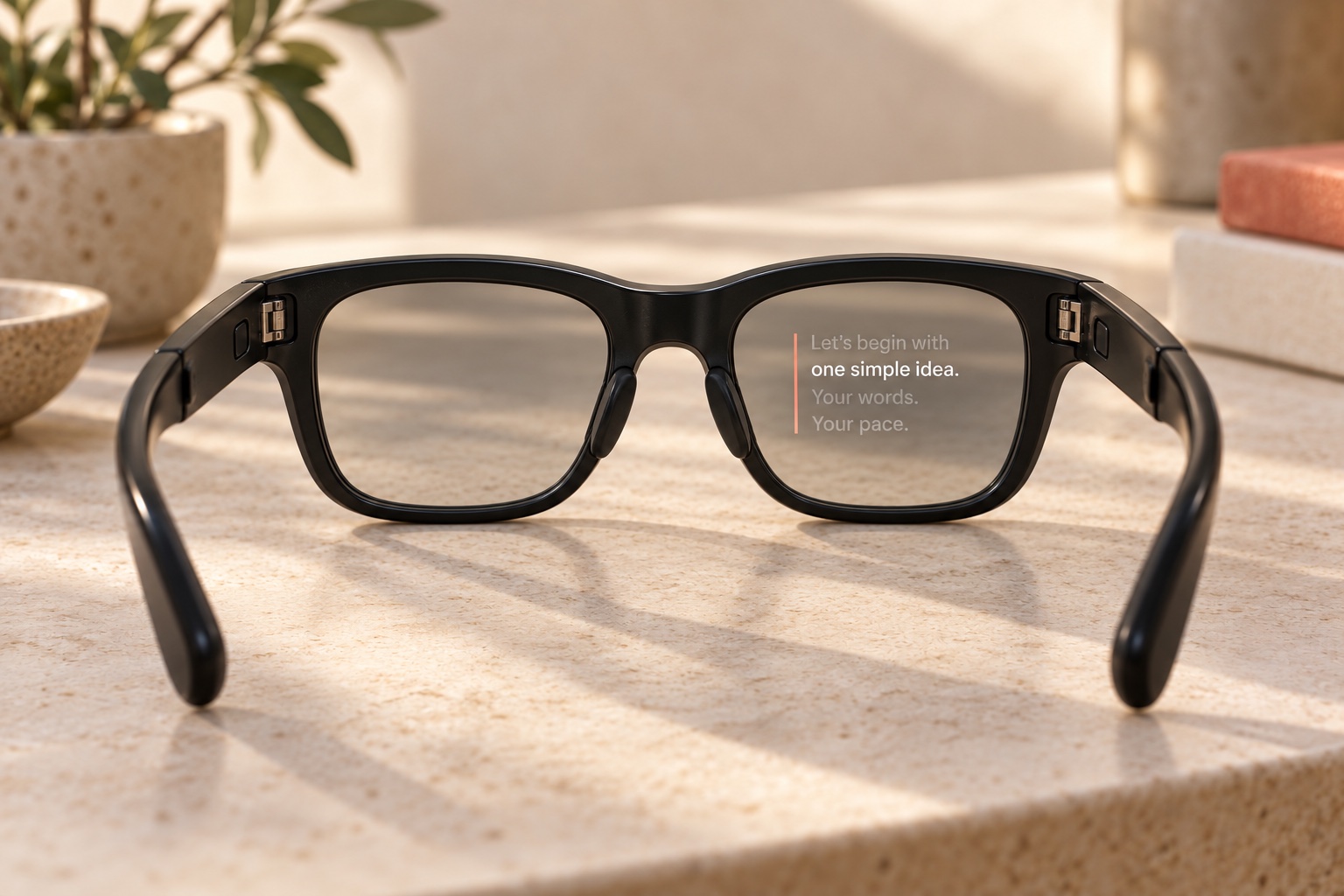
The reading view carries familiar AdLibly cues into the lens: white current words, dim spoken words, grey upcoming words and a coral guide at the reading height. The surrounding text gives context while the contrast helps you find the active phrase.
Start with a comfortable text size. A few short lines are easier to return to than a dense block of text. Read one complete idea, look away, then check whether the next phrase is easy to find. Use short paragraphs and clear section openings to give the recognition engine and your eyes useful landmarks.
Cloud now. Direct coming soon.
Use Cloud to keep your words in view while your iPhone follows your speech. Direct is an upcoming option for presenting without internet.
Direct: coming soon
Direct is being prepared for situations where venue Wi-Fi is unavailable or unreliable. It is not yet available in the App Store app.
Cloud: present while connected
Open the AdLibly Web App on your glasses and link it to your iPhone once. The pairing is remembered for your next presentation. Cloud needs internet on both devices.
Rehearse with the connection you plan to use at the venue, so you can begin with confidence.
Pair once, then reopen
For Cloud, add the Web App in Meta AI as AdLibly, open it on the glasses, and enter the eight-digit code into the Cloud panel on the phone. AdLibly remembers the pairing so later presentations can reconnect while Cloud remains enabled.
The code is a one-time setup step. Ordinary reconnects use your saved pairing. Clearing Web App storage, unlinking, or moving to another phone requires a new pairing. Keep the phone presentation open or actively listening; a paused app in the background may be suspended by iOS.
The glasses setup page walks you through Cloud.
What leaves your phone?
Speech recognition stays on the iPhone. Audio is not sent to our Cloud relay. In Cloud, the script, reading position and controls are encrypted on your devices before transmission through Cloudflare. A temporary encrypted script snapshot helps a reconnecting viewer recover; it is removed on phone disconnect or expiry.
The phone and glasses retain pairing credentials, and the relay retains credential hashes so they can reconnect. This is different from the local phone-and-iPad Companion connection. The privacy page explains the data flow and retention.
A five-minute rehearsal
- Use the actual setup. Wear the glasses, connect with Cloud and place the iPhone where it will be during the presentation.
- Read a short paragraph. Check the text size and where the current words sit in your view.
- Pause and look away. Return after a few seconds and find the next complete thought.
- Answer an imagined question. Speak freely, then rejoin at a distinctive sentence in the script.
- Practise the fallback. Find pause and paragraph controls. Check what you see during a brief connection loss.
Use a script you can recover from without the prompt. The opening, transitions, exact figures and closing are good landmarks to have prepared. Glasses are useful when they leave you comfortable speaking and listening in the room.
Your words, within reach.
Get AdLibly on your iPhone, then follow the setup guide to read your script on Meta Ray-Ban Display.