A webinar may have polished slides and a carefully written opening, but it is still a live event. Someone may arrive late, a question may change the order of the explanation, a demo may take longer than expected, or the host may need to fill a quiet moment. A scrolling script that assumes a perfect performance can make those ordinary moments harder.
Use a teleprompter as a run of show: a compact map of the session with exact language where accuracy matters and clear landmarks where the conversation can move. That gives you something useful to glance at near the camera while keeping the audience, chat, and presentation controls in view.
Write for the points that cannot drift. Keep the welcome, promised outcome, names, figures, transitions, calls to action, and closing wording available. Treat explanations, questions, and demonstrations as flexible sections you can enter and leave without losing the whole script.
Start with a webinar map, not a full transcript
A full transcript can be useful for a short recorded introduction. In a live webinar, it tends to hide the important turns in a long block of text. Instead, divide the session into labelled sections that make sense even if you have to skip one, answer a question, or shorten the demo.
Each section should start with a visible destination: what the audience should understand, see, or do next. Put the exact sentence you need below it, followed by a few short talking cues. The layout makes the next complete idea easier to find when you look back down.
AdLibly webinar run of show
A copyable structure for a 30-minute session
- Welcome — 0:00–2:00. Say who the session is for, what people will leave with, and how questions will work. Keep this wording complete enough to be calm if you start a few minutes late.
- The problem — 2:00–7:00. One concrete situation, the cost of leaving it unsolved, and the first useful takeaway. Leave room for a brief audience check-in.
- The method — 7:00–15:00. Three labelled steps. Give each a short transition such as “First, make the opening easy to find” so you can rejoin after a question.
- Demo or example — 15:00–22:00. List the screen or action you will show, the sentence that explains why it matters, and the next screen. Do not script every click.
- Questions — 22:00–27:00. Keep three return points: “That connects to step one”, “Before we move on”, and “Let’s return to the example.” They let you acknowledge a question without improvising the whole transition.
- Close — 27:00–30:00. Restate the outcome, name the next action, and say where the recording or follow-up will appear if you know that information is confirmed.
These time ranges are planning markers, not a promise that the audience will behave on schedule. If the opening or demo has a strict duration, use the script timing calculator on just that segment rather than forcing the whole webinar into one reading speed.
Place the prompt where you can still host
The right prompt position depends on the view you must keep. If you are speaking directly to camera for the opening, place a phone or tablet close to the webcam and keep each glance short. If you need to watch a participant gallery or live chat, make the prompt narrow enough that it does not cover the reactions you need to notice.
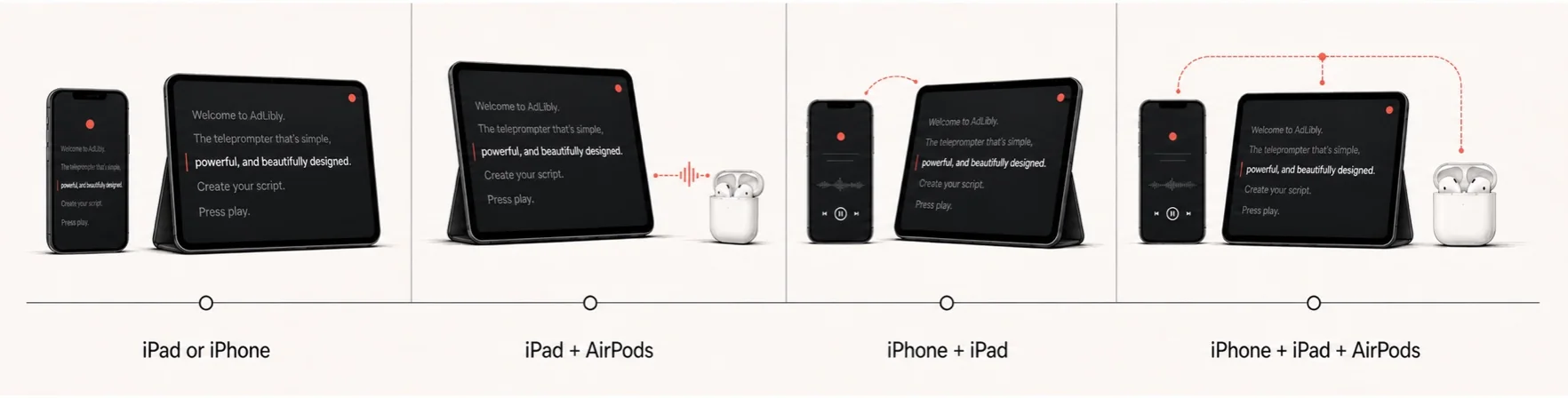
For an iPad webinar, arrange the webinar app and AdLibly before attendees join. If the webinar app needs the iPad microphone, you can pair a nearby iPhone as an AdLibly Companion listener while the iPad keeps the script visible. Use headphones so the webinar audio does not reach the iPhone's microphone. The Teams setup guide shows the same two-device preparation in more detail.
A camera-mounted glass teleprompter can be a good fit for a strongly scripted, direct-to-camera introduction. It is not required for the rest of the session: when discussion and screen sharing begin, a nearby on-screen prompt often leaves more of the webinar interface available. Compare the two arrangements in the glass versus on-screen guide.
Prepare three ways back into the session
The most useful webinar prompt includes recovery paths. Do not make one missed line the only route to the next slide. Give each section a heading, a transition sentence, and a clear next action. If the presenter needs to pause, they should be able to return to the next heading rather than hunt for the precise word they last read.
| If this happens… | Keep this in the prompt | Your next move |
|---|---|---|
| A participant asks a question early | A one-sentence bridge and the next section heading | Answer, then name the heading you are returning to. |
| The demo takes longer than planned | A short version of the next explanation and the closing action | Skip detail that the screen already showed; protect the takeaway. |
| You lose your place while speaking | Visible section labels and paragraph breaks | Pause, find the next complete idea, and continue without explaining the search. |
| There is no question at the end | One prepared reflection prompt and the closing | Ask the audience to choose a next step, then close cleanly. |
AdLibly follows the words you say rather than moving at a fixed scroll speed, so it can be more forgiving of a deliberate pause or a short ad-lib. Paragraph controls remain a useful deliberate fallback when you want to choose the restart point yourself. Practise both before the live session; the lost-place rehearsal drill is a good five-minute check.
Rehearse the transitions, not only the speech
Run the opening once at a normal pace, then rehearse the points where your attention changes: camera to slides, slides to demo, demo to chat, and chat to close. At each switch, confirm that you know which view stays visible and which line gets you into the next section.
Use realistic interruptions. Pause for five seconds at the end of a slide. Pretend a question arrived before the demo. Skip a paragraph and find the next labelled section. This does not need to be a complete dress rehearsal; it is a practical test of whether the prompt makes the webinar easier to host.
Keep your place while the webinar stays live
AdLibly gives iPhone and iPad presenters a clear reading line, paragraph controls, and optional local voice-follow for prompts that need to bend with the conversation.
Get AdLibly